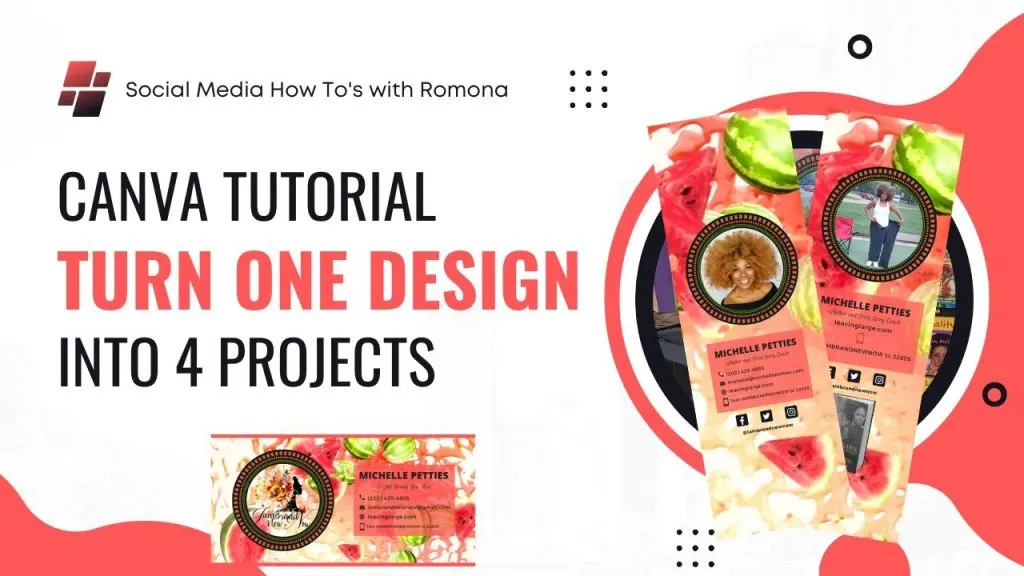
Canva Tutorial for Beginners: Turn One Canva Design into Four Projects | Branding for Business
Shopify 60 day trial
Step 1: Choose Your Canva Template
Related reading : (Tutorial) How To Use Canva For Print On Demand
The first step is to choose a design template from the vast selection of beautifully-designed options in Canva. You can either search for a specific type of template, such as for a brochure or business card, or browse through the different categories and collections. You can also choose from thousands of premade templates created by professional Canva designers.
Take your time looking through the many templates, and when you find one you like, click on it to open it in the design editor.
Step 2: Customize the Design
Once you’ve opened the template in the design editor, it’s time to customize and personalize it to make it your own. You can add your own images and text, adjust colors and fonts, and incorporate elements such as illustrations, icons, and shapes.
For a branding project, you may want to keep the same general design theme across all four projects. For example, you could use the same font and colour scheme, or the same type of illustrations. This will help create continuity and a strong visual brand for your business.
Step 3: Create Your First Project
Now that you’ve customized your design, it’s time to create your first project. You can start by resizing the design to fit the requirements of the corresponding project. For example, if you’re creating a brochure, you’ll need to make it a certain size and shape to fit standard brochure paper sizes.
Step 4: Duplicate Your Design
Once you’ve resized the first design, you can easily duplicate it for the other projects. Just right-click on the design and hit “Duplicate”. This will create an exact copy of the design that you can then customize and tailor to fit the other projects.
Step 5: Customize Each Design
Finally, you can then customize each design. Be sure to take the time to make small tweaks and adjustments to each, such as replacing the image or text, so that each project has its own unique look and feel.
Step 6: Export and Print
When your projects are finished, you can export them as high-resolution files or PDF’s. From here, you can either print them out at home or have them professionally printed.
Conclusion
Canva makes it easy to turn one design into four projects. With a few simple steps, you can create a cohesive visual branding package for your business. Give it a try today!
Read next
 Shopify
Debutify Theme Customization Tutorial 2023 👉 Shopify Store Design Tutorial for Beginners in 2023
Shopify 60 day trial 1. Choose a Theme To begin customizing your Shopify store, pick a theme that best suits your online
 Shopify
HOW TO START YOUR PRINT ON DEMAND BUSINESS in 2023 | Print on Demand Tutorial for Beginners
Shopify 60 day trial 1. Research and select a target market: While you might have a great product idea, it’s important t
 Shopify
(Tutorial) How To Use Canva For Print On Demand
Shopify 60 day trial Canva is an incredibly useful and versatile tool that can help you create amazing designs for print
 Shopify
How I Would Start A Shopify Dropshipping Business In 2023 (For Beginners)
Shopify 60 day trial 1. Research Your Niche: The first step to starting a Shopify dropshipping business in 2023 is to do